by Sagar MV
Have you ever needed to access Informatica services from a third party application such as Salesforce.com or another Cloud/Non-Cloud application but were unable to do so? By configuring web services in the Informatica Power Center, it is possible to access Informatica services from a third party application.
What is a Web Service?
These are the business functions that operate over the web and are accessible through the standardized XML (eXtended Marked up Language). Informatica has exposed its metadata and data integration functionalities to allow accessibility by any third party application. This means that workflows can be run from outside Informatica. Applications can be written in any language or platform to communicate with the Power Center integration services.
In general, there are two components that enable the communication between one application and another: SOAP and WDSL.
What is SOAP and WSDL? (Informatica Protocols)
Simple Object Access Protocol is the communication protocol that defines the format of a message for the web service. Communication takes place through XML, and the document that contains the XML is called WSDL.
(Some applications provide web services through UDDI –Universal Description, Discovery, and Integration. For these applications, web service needs to be registered in the directory of UDDI.)
What is required in Informatica to provide web services to other applications?
Web Services Hub: Bridge between Informatica Integration Services, Repository Services and the web service clients (third party applications). It uses SOAP to receive requests and send responses, and it contains a console that provides the WSDL files for various operations that can then be used by the client application.
Batch Web Services: Methods or operations that allow access to repository metadata and integration services. There are two kinds of batch web services – Data Integration Web Service(DIWS) and Metadata Web Services (MWS). The former provides operations with respect to integration services, such as schedule/run/stop/start workflows/tasks. DIWS also receives statistics about the load. MWS provides the set of operations for repository objects such as folders/workflows/tasks, task source table, task target tables, etc.
Real Time Web Services: Workflows that can be run as a web service from other applications. Once the web service hub is created, the workflows can be marked as web services. Web service mapping can also be created, in which the source defines the user request and the target defines the response. Real Time Web Services are managed through the web service hub console.
Informatica Web Services Provider Architecture:
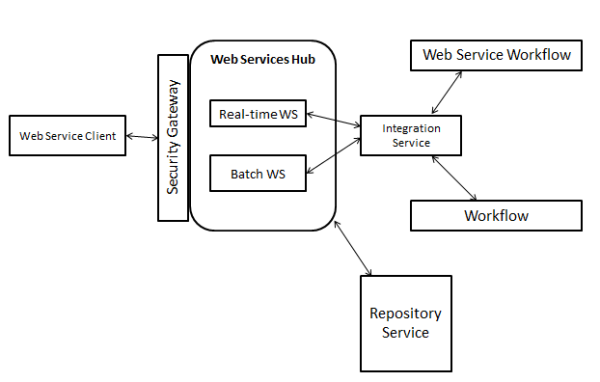
The web service hub processes both real time and batch web services. The web service client communicates with web service hub by the SOAP message to run a web service (by using WSDL). The security gateway authenticates the web service client using the Session ID if it is Batch Web Services, or by using the User Token if it is Real Time Web Services. If the web service request is for Batch Web Services, web service hub sends a message to integration service or repository service based on the type of request. The Batch Web Services can only communicate with the workflows and not a web service workflow.
However, if the request is from Real Time Web Services, then the integration service communicates with the web service workflow and the integration service sends the processed data to the web service hub. Web service hub then communicates with the web service client using SOAP.
Steps for Batch Web Services
Step 1 - Create a web service hub: Log into the Informatica administration console and under the actions tab, click on new-> web service hub.
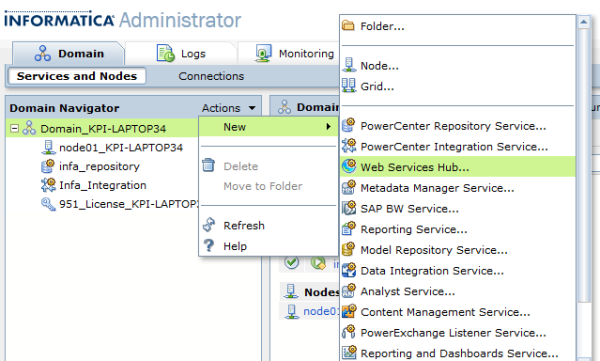
Enter the details below:
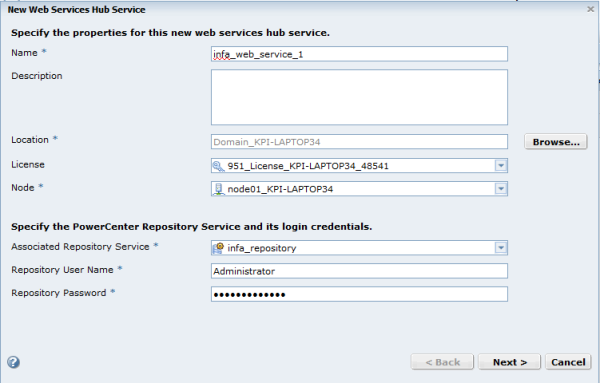
On the next screen, enter the details below:
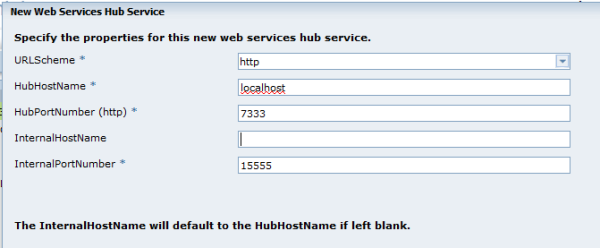
(Note: you can select http, or https, or both. The port number will change based on this selection. For HTTPS, the default number is: 7343)
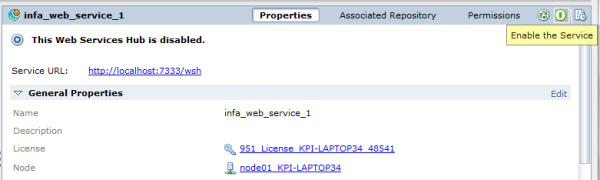
Once the hub is created, the hub service can be enabled by clicking on Enable The Service, as shown below:
Step 2 - Log into the web service hub console http://<webservicehubhostname>:7333/wsh/
These are the set of functions which enable the operations between the client application and the repository service.
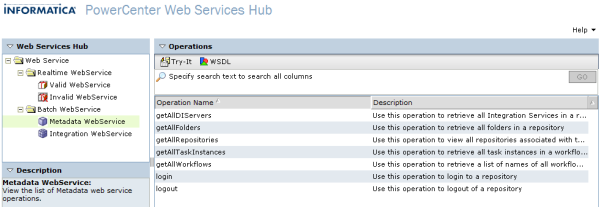
There are two options - Try-It and WSDL.
Step 3 - Using the Try-It feature:
Click on Try-It and then select Login from the operations pane. Select the XML input tab and enter the Informatica domain that you are using:
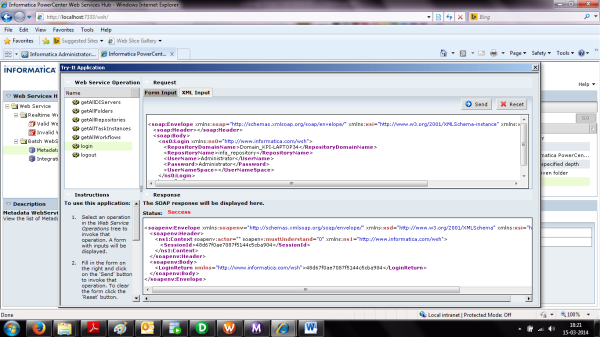
Click Send to check the operation. The status will indicate if it was successful and the Session ID will be generated in the XML.
Below is the getAllFolders web service operations:
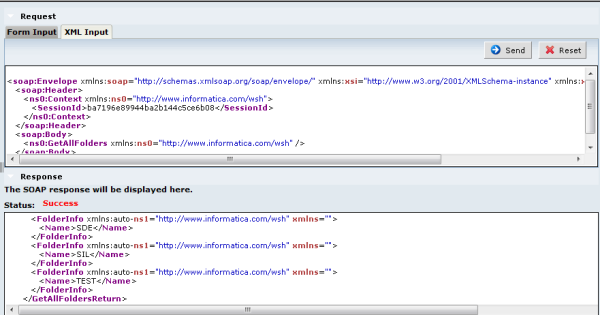
The folder names will appear in the bottom section of the screen, as shown above. This is a means of testing the operation from the Try-It feature.
Now, let us talk about using a simple client side application which uses the web services provided by Informatica.
Step 4 - Using Java Based Client Side Application:
Two things are needed in order to write a Java-based client side application:
- WSDL file for all the batch operations that Informatica supports.
- Web Service Tool Kit, which generates the client side proxy classes from the WSDL.
The client side application code contains:
- Generating client proxy classes
- Initialization of the proxy classes
- Session maintenance
- Operation calls
- Resource clean-ups
- Error handling
- Proxy objects
Sample JAVA applications provided by Informatica
If you have access to the informatica server path you can browse through some of the sample code written in Java. All of these sample codes are located here:
<Infa_HOME>\server\samples\WebServices\samples\BatchWebServices\axis\
There are several folders and each one has its own set of operations. Consider the sample code in the following path:
<Infa_HOME>\server\samples\WebServices\samples\BatchWebServices\axis\dataintegration\
There are three folders in this path.
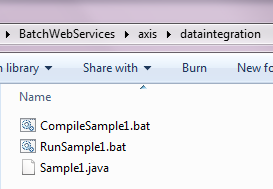
You can use ComplieSample1.bat to compile the Sample1.java file. Once the code is compiled, you will have Sample1.class file and can use RunSample1.bat to run the Sample1.class file. The following are arguments that need to pass while running RunSample1.bat.
Usage: RunSample1.bat [-s|-ns] <WSH Hostname> <WSH Port Num> <Repository Domain Name> <Repository Name> <User Name> <Password> <DI Service Domain Name> <DI Service Name> <Folder Name> <Workflow Name> <Task Name>
The command should look like this after filling the entries:
RunSample1.bat -ns localhost 7333 Domain_KPI-LAPTOP34 infa_repository Administrator Administrator Domain_KPI-LAPTOP34 Infa_Integration TEST wf_Real_Time_Web_Service s_Real_Time_Web_Service
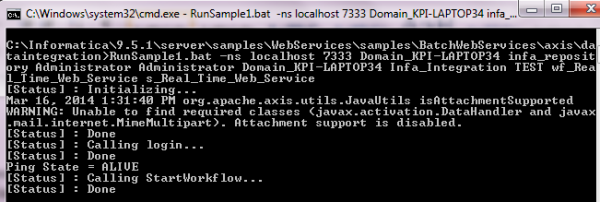
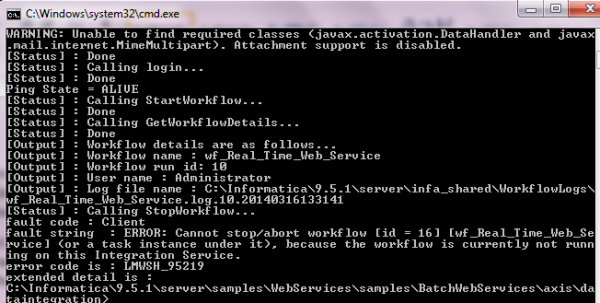
Once the command is executed, the workflow monitor will show that the task is running.
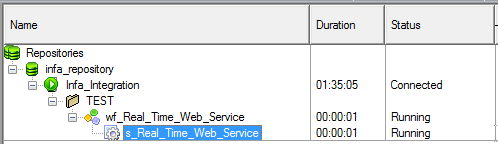
(s_Real_Time_Web_Service is a session that has simple source to target mapping, from oracle to oracle)
Informatica can be contacted by external custom applications written in any language and in any platform. This makes Informatica a web service enabled application.
References: Informatica White Papers
 |
Sagar MV is a Senior Consultant at KPI Partners, specializing in business intelligence, data warehousing, and data integration. He has developed insightful reporting solutions using enterprise source systems such as Siebel, People Soft, Oracle E-Business Suite and others. Check out Sagar’s blog at KPIPartners.com. |